Bullet Shoot MV: Advanced Projectile System
A downloadable tool
RPG Maker MV Plugin: Bullet Shoot (v1.4.2)
Author Root
Plugin Description
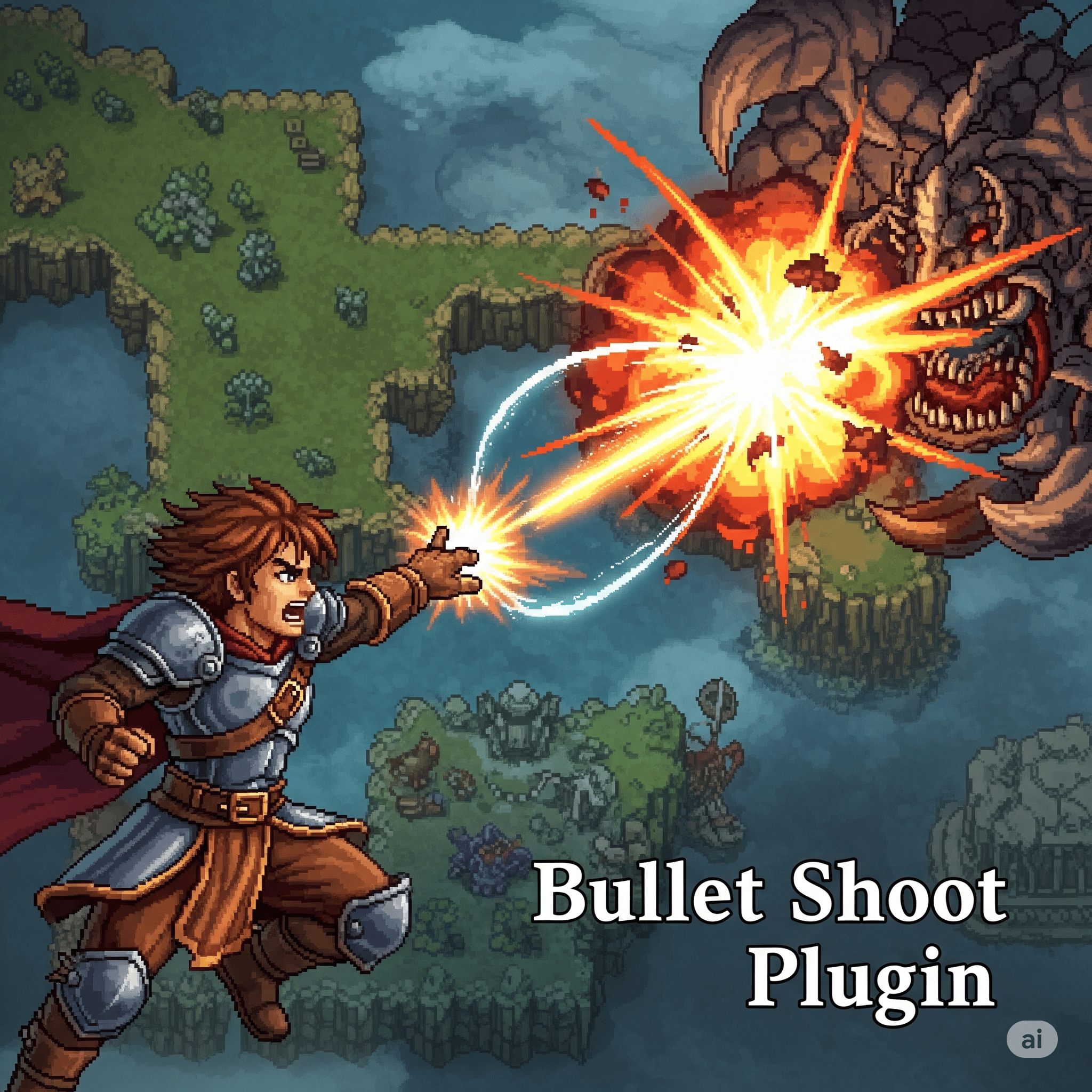
Bullet Shoot>span class="selected"> plugin for RPG Maker MV enables dynamic bullet firing on the map, allowing for interactive projectiles that can hit and affect both the player and other events. This enhanced version introduces features like bullet rotation, horizontal and vertical flipping, the ability to change the bullet's graphic upon hitting a target, a configurable delay before bullet destruction, and the option for bullets to follow their hit target until destruction.
this plugin offers robust control over projectile behavior, making it ideal for various game mechanics such as shooting, spell casting, or environmental hazards.
Key Features
- Player and Event Firing: Bullets can be fired from the player character or any designated event.
- Targeting Options: Shoot bullets at a specific target (player or event) or in a fixed direction.
- Customizable Bullet Properties: Control bullet speed, maximum travel distance, graphic, hit animation, and sound effects (projectile and hit).
- Multi-Hit Capability: Configure bullets to pass through and hit multiple targets or stop after the first hit.
- Diverse Hit Actions: Define actions to be performed upon hitting a target, including:
- Triggering Common Events
- Toggling Switches
- Modifying Variables (e.g., reducing HP, increasing counters)
- Dealing HP Damage to players or specific actors
- Triggering an event's "OK" button press.
- Advanced Visuals:
- Rotation: Bullets automatically rotate to face their direction of travel.
- Horizontal/Vertical Flip: Apply visual flipping to bullet graphics.
- Hit Graphic: Change the bullet's appearance after it hits a target.
- Destroy Delay: Keep the bullet visible for a set duration after a hit, allowing for visual effects or continued interaction.
- Follow Hit Event: The bullet can stick to and follow the target it hit until its destruction delay runs out.
- Event Notetag Auto-Shooting: Events can be configured to automatically shoot at specific target types (e.g., player, events with a certain tag) within a defined range and interval.
- Script Call Integration: Check if the player or a specific event was the last one hit by a bullet, enabling advanced conditional logic in your game.
- Debug Mode: A built-in debug mode provides console logs for bullet firing, hits, and action execution, aiding in development and troubleshooting.
Plugin Parameters
You can configure these parameters in the RPG Maker MV Plugin Manager:
- Tile Size:
@param Tile Size@desc The tile size for the game (default: 48)@default 48- Description: Sets the standard tile size of your game. This is crucial for accurate distance calculations and bullet positioning.
- Fade Speed:
@param Fade Speed@desc Speed at which bullets fade out when max distance is reached@default 40- Description: Determines how quickly a bullet's opacity decreases when it reaches its maximum travel distance without hitting a target. Higher values mean a faster fade.
- Max Bullets:
@param Max Bullets@desc Maximum number of active bullets allowed (default: 10)@default 10- Description: Limits the total number of bullets that can be active on the map at any given time. This helps prevent performance issues with too many concurrent projectiles.
- Debug Mode:
@param Debug Mode@desc Enable minimal debug logs for firing and hits (true/false)@default false- Description: Set to
trueto enable console logs (accessible via F8 in playtest mode) for bullet firing, target detection, and hit actions. Useful for debugging your bullet setups.
- Download:>span class="selected"> Download the
BulletShoot.jsfile. - Place in Project: Copy
BulletShoot.jsinto your RPG Maker MV project'sjs/pluginsfolder. - Plugin Manager: Open your RPG Maker MV project, go to the Plugin Manager (Tools -> Plugin Manager, or click the puzzle piece icon in the toolbar).
- Add Plugin: Double-click an empty row, select
BulletShootfrom the list, and click OK. - Order: Ensure
BulletShoot.jsis placed above any other plugins that might depend on its functionalities (e.g., plugins that modify event behavior related to collision or actions). - Apply: Click "Apply" in the Plugin Manager and save your project.
Usage
1. Plugin Commands
Plugin commands are used within event commands (e.g., "Script..." or "Plugin Command...") to fire bullets dynamically.
Syntax for Shooting at a Target:
BulletShoot atTarget sid tid speed dist graphic anim projSound hitSound multiHit action flipH flipV hitGraphic destroyDelay
Syntax for Shooting in a Direction:
BulletShoot direction sid dir speed dist graphic anim projSound hitSound multiHit action flipH flipV hitGraphic destroyDelay
Parameters Explained:
<span class="selected">sid</span>(Start ID):-1: The Player character.[Event ID]: A specific event on the map (e.g.,5for Event ID 5).
<span class="selected">tid</span>(Target ID - for<span class="selected">atTarget</span>only):-1: The Player character.[Event ID]: A specific event on the map.- Note: For
directiontype, this parameter is replaced bydir.
<span class="selected">dir</span>(Direction - for<span class="selected">direction</span>only):2: Down4: Left6: Right8: Up
<span class="selected">speed</span>:[Number]: The speed of the bullet in pixels per frame (e.g.,5). Higher values mean faster bullets.
<span class="selected">dist</span>:[Number]: The maximum distance the bullet will travel in tiles (e.g.,6). After this distance, the bullet will start to fade out.
<span class="selected">graphic</span>:[Image Name]: The filename of the image to use for the bullet, located in your project's/img/pictures/folder (e.g.,bullet,fireball).
<span class="selected">anim</span>:[Animation ID]: The ID of an animation from your database to play when the bullet hits a target (e.g.,10). Use0for no animation.
<span class="selected">projSound</span>:[Sound Effect Name]: The filename of a sound effect to play when the bullet is fired (e.g.,GunShot1). Use"none"for no sound.
<span class="selected">hitSound</span>:[Sound Effect Name]: The filename of a sound effect to play when the bullet hits a target (e.g.,Explosion1). Use"none"for no sound.
<span class="selected">multiHit</span>:trueorfalse:true: The bullet can hit multiple targets and continue traveling.false: The bullet will stop and be destroyed after hitting the first target.
<span class="selected">action</span>:[String]: Defines what happens when the bullet hits a target. Multiple actions can be separated by semicolons (;).- Action Types:
c([Common Event ID]): Triggers a Common Event.- Example:
c(1)(triggers Common Event 1)
- Example:
s([Switch ID]:[on/off]): Changes a Switch's state.- Example:
s(1:on)(turns Switch 1 ON) - Example:
s(5:off)(turns Switch 5 OFF)
- Example:
v([Variable ID]:[Amount]): Reduces a Variable's value by the specified amount. (Note: The plugin code shows reduction, but typicallyv(ID:AMOUNT)could mean set or change. For this plugin, it reduces.)- Example:
v(10:5)(reduces Variable 10 by 5)
- Example:
p([Damage]): Deals HP damage to the Player.- Example:
p(10)(deals 10 HP damage to the Player)
- Example:
p([Actor ID]:[Damage]): Deals HP damage to a specific Actor.- Example:
p(1:10)(deals 10 HP damage to Actor ID 1)
- Example:
o(ok): Triggers an "OK" button press on the hit event. The target event must have its trigger set to "Action Button".- Example:
o(ok)
- Example:
<span class="selected">flipH</span>:trueorfalse:trueto flip the bullet graphic horizontally.
<span class="selected">flipV</span>:trueorfalse:trueto flip the bullet graphic vertically.
<span class="selected">hitGraphic</span>:[Image Name]: The filename of the image to display after the bullet hits a target. Located in/img/pictures/. Use"none"to keep the originalgraphic.
<span class="selected">destroyDelay</span>:[Number]: Time in frames to delay bullet destruction after it hits a target (e.g.,30frames = 0.5 seconds). Use0for immediate destruction. IfmultiHitisfalse, the bullet will remain on the screen for this duration, potentially following the target.
Plugin Command Examples:
- Player shoots at Event 3, dealing 10 damage to Actor 1:
BulletShoot atTarget -1 3 5 6 bullet 1 GunShot1 Impact1 false p(1:10) false false explosion 30
(Fires a "bullet.png" at Event 3, speed 5, distance 6 tiles, plays animation 1, GunShot1 on fire, Impact1 on hit, single hit, deals 10 HP to Actor 1, no flip, changes to "explosion.png" on hit, destroys after 30 frames.)
- Event 8 shoots at Player, dealing 10 damage to Player:
BulletShoot atTarget 8 -1 5 25 Sword 0 Slash2 Slash1 false p(10) false true none 0
(Event 8 fires "Sword.png" at the Player, speed 5, distance 25 tiles, no animation, Slash2 on fire, Slash1 on hit, single hit, deals 10 HP to Player, no horizontal flip, vertical flip, keeps original graphic, destroys immediately.)
- Event 5 shoots left, triggers Switch 1 ON and reduces Variable 5 by 3:
BulletShoot direction 5 4 4 5 magic_orb 2 Spell1 none false s(1:on);v(5:3) false true hit_orb 60
(Event 5 fires "magic_orb.png" to the left, speed 4, distance 5 tiles, plays animation 2, Spell1 on fire, no hit sound, single hit, turns Switch 1 ON and reduces Variable 5 by 3, no horizontal flip, vertical flip, changes to "hit_orb.png" on hit, destroys after 60 frames.)
2. Event Notetags for Auto-Shooting
You can configure events to automatically shoot bullets based on specific conditions using notetags in their "Notes" section (under the Event Editor, Page tab).
Syntax:
<BulletShoot: type="atTarget" thisEvent="true" targetType="[tag]" wait="[seconds]" speed="[pixels/frame]" dist="[tiles]" graphic="[image]" anim="[id]" projSound="[sound]" hitSound="[sound]" multiHit="true|false" action="[actions]" tag="[tag]" targetRange="[tiles]" flipH="true|false" flipV="true|false" hitGraphic="[image]" destroyDelay="[frames]">
Parameters Explained (similar to Plugin Commands, with additions):
<span class="selected">type="atTarget"</span>: Currently, onlyatTargetis supported for auto-shooting.<span span="" class="selected"></span>>span class="selected">: This must be set totruefor the event to auto-shoot.<span class="selected">targetType="[tag]"</span>:Player: The bullet will target the player.[Event Tag]: The bullet will target the nearest event that has the specified tag in its own notetag (e.g.,targetType="Enemy"will target events with<Enemy>in their notes).
<span class="selected">wait="[seconds]"</span>: The interval in seconds between each shot (e.g.,2for every 2 seconds).<span class="selected">tag="[tag]"</span>: (Optional) If this notetag is present, the event will only auto-shoot if it also has the specified<tag>in its own notes. This allows for conditional auto-shooting based on event properties.<span class="selected">targetRange="[tiles]"</span>:[Number]: The maximum range in tiles within which a target must be for the event to shoot at it.0: The event will shoot regardless of target distance (if a target is found).
Event Notetag Examples:
- An event (e.g., a turret) that shoots fireballs at the player every 2 seconds, if the player is within 8 tiles:
<BulletShoot: type="atTarget" thisEvent="true" targetType="Player" wait="2" speed="6" dist="10" graphic="fireball" anim="10" projSound="Fire1" hitSound="Explosion1" multiHit="false" action="p(1:10)" targetRange="8" flipH="false" flipV="true" hitGraphic="explosion" destroyDelay="30">
- An event (e.g., a laser trap) that shoots lasers at any event with
<span class="selected"><TargetDummy></span>tag every 1 second, within 6 tiles, dealing 1 damage to Variable 1:<BulletShoot: type="atTarget" thisEvent="true" targetType="TargetDummy" wait="1" speed="8" dist="5" graphic="laser" anim="0" projSound="Laser" hitSound="Flash" multiHit="true" action="v(1:1)" tag="Turret" targetRange="6" flipH="true" flipV="false" hitGraphic="none" destroyDelay="0">
(This event will only shoot if it also has
<span class="selected"><Turret></span>in its notes. The laser will hit multiple targets, reduce Variable 1 by 1 for each hit, keep its original graphic, and destroy immediately.)
3. Event Notetags for Bullet Interaction
These notetags are placed in the "Notes" section of events that you want bullets to interact with.
<span class="selected"><bulletEffect></span>:- Description: Place this notetag in an event's notes to allow bullets to trigger actions on it. If an event does not have this tag, bullets will pass through it without triggering any
actionoranim.
- Description: Place this notetag in an event's notes to allow bullets to trigger actions on it. If an event does not have this tag, bullets will pass through it without triggering any
<span class="selected"><bulletBlock:true></span>or<span class="selected"><bulletBlock:false></span>:- Description: Controls whether an event blocks bullets.
<bulletBlock:true>: The event will act as a solid barrier for bullets. If a bullet hits it, it will triggeronHitlogic and potentially stop (ifmultiHitisfalse).<bulletBlock:false>: The event will allow bullets to pass through it without triggeringonHitlogic.
- Default: If this notetag is omitted, events are considered
true(blocking) by default.
- Description: Controls whether an event blocks bullets.
4. Script Calls
These JavaScript functions can be used in "Script..." command boxes within events or in common events for advanced logic.
Bullet.wasEventHit([eventId])- Description: Checks if the event with the specified
[eventId]was the last event hit by a bullet. - Returns:
trueif the event was the last hit,falseotherwise. - Example:
if (Bullet.wasEventHit(3)) { $gameVariables.setValue(10, 1); // Set Variable 10 to 1 if Event 3 was hit }
- Description: Checks if the event with the specified
Bullet.wasPlayerHit()- Description: Checks if the Player character was the last target hit by a bullet.
- Returns:
trueif the player was the last hit,falseotherwise. - Example:
if (Bullet.wasPlayerHit()) { $gameVariables.setValue(10, 1); // Set Variable 10 to 1 if the Player was hit }
Debugging
- Set the Debug Mode plugin parameter to
true. - During playtesting, press
F8to open the developer console. You will see logs related to bullet firing, target detection, and action execution, which can help diagnose issues.
Important Notes
- Image Assets: Ensure all
graphicandhitGraphicimages are placed in your project'simg/pictures/folder. - Sound Assets: Ensure all
projSoundandhitSoundaudio files are placed in your project'saudio/se/folder. - Plugin Order: Always verify that
BulletShoot.jsis positioned correctly in your Plugin Manager, especially if you have other plugins that modify character or event behavior. - Event Triggers: For the
o(ok)action to work, the target event's trigger must be set to "Action Button". - Coordinate System: The plugin internally uses pixel coordinates for bullet movement and collision, converting from tile coordinates as needed.
- Performance: While optimized, using an excessive number of
Max Bulletsor very highspeedvalues on older hardware might impact performance. Test thoroughly.
## License (MIT License) Copyright (c) Root Permission is hereby granted, free of charge, to any person obtaining a copy of this software and associated documentation files (the "Software"), to deal in the Software without restriction, including without limitation the rights to use, copy, modify, merge, publish, distribute, sublicense, and/or sell copies of the Software, and to permit persons to whom the Software is furnished to do so, subject to the following conditions: The above copyright notice and this permission notice shall be included in all copies or substantial portions of the Software. THE SOFTWARE IS PROVIDED "AS IS", WITHOUT WARRANTY OF ANY KIND, EXPRESS OR IMPLIED, INCLUDING BUT NOT LIMITED TO THE WARRANTIES OF MERCHANTABILITY, FITNESS FOR A PARTICULAR PURPOSE AND NONINFRINGEMENT. IN NO EVENT SHALL THE AUTHORS OR COPYRIGHT HOLDERS BE LIABLE FOR ANY CLAIM, DAMAGES OR OTHER LIABILITY, WHETHER IN AN ACTION OF CONTRACT, TORT OR OTHERWISE, ARISING FROM, OUT OF OR IN CONNECTION WITH THE SOFTWARE OR THE USE OR OTHER DEALINGS IN THE SOFTWARE.
Download
Click download now to get access to the following files:
Development log
- Bullet Shoot MV: Advanced Projectile SystemJul 19, 2025
Leave a comment
Log in with itch.io to leave a comment.